Use Google Drive to organize your educational files
How to Use Google Drive to Effectively Organize Your Files
Google Drive is a powerful cloud storage tool that lets you access your files from anywhere and makes sharing and collaborating with others easy. Here’s a simple guide to using it effectively:
Getting Started: Creating Organized Folders
Step 1: Go to drive.google.com
Step 2: Click the "New" + button in the top left corner
Step 3: Select "Folder" from the menu
Step 4: Type a folder name, for example, "My School Project"
Step 5: Click "Create"
Two: Uploading Files and Documents
Drag and Drop
Open the folder on your computer that contains the file
Drag and drop the file into the Drive window
Manual Upload
Click "New" + → "Upload File"
Select the file from your device → "Open"
Drive supports almost all file types, including photos, PDFs, and PowerPoint presentations.
Three: Sharing and Collaborating
One of Drive’s greatest advantages is how easy it is to share files. You can:
- Send a link to a file or folder
- Set permissions for each person: View only, Comment, or Edit
- Work on the same documents in real time with others
Step 1: Right-click on the file
Step 2: Select "Share" from the menu
Step 3: Choose how to share:
📧 Enter people's email addresses
🔗 Copy the share link
Step 4: Set permissions
👀 View only
💬 Comment: Add comments
✏️ Edit and share
Step 5: Click "Send" or "Done"
Use integrated Google tools
Drive gives you free access to:
- Google Docs for writing documents
- Google Sheets for spreadsheets
- Google Slides for presentations
*Check out the course offered by Afedni Academy to learn how to master Google tools*
Search and access quickly
With a large number of files, use the search bar to quickly find what you need. You can search by file name, type, or even keywords within text documents.
Mobile App
With Google Drive on your phone, you can access, share, and even upload new files from anywhere.
With these basics, you can organize your files digitally in a secure and easily accessible way, saving you time and effort and turning your phone or computer into a always-available, organized office.
بحث
أحدث المقالات
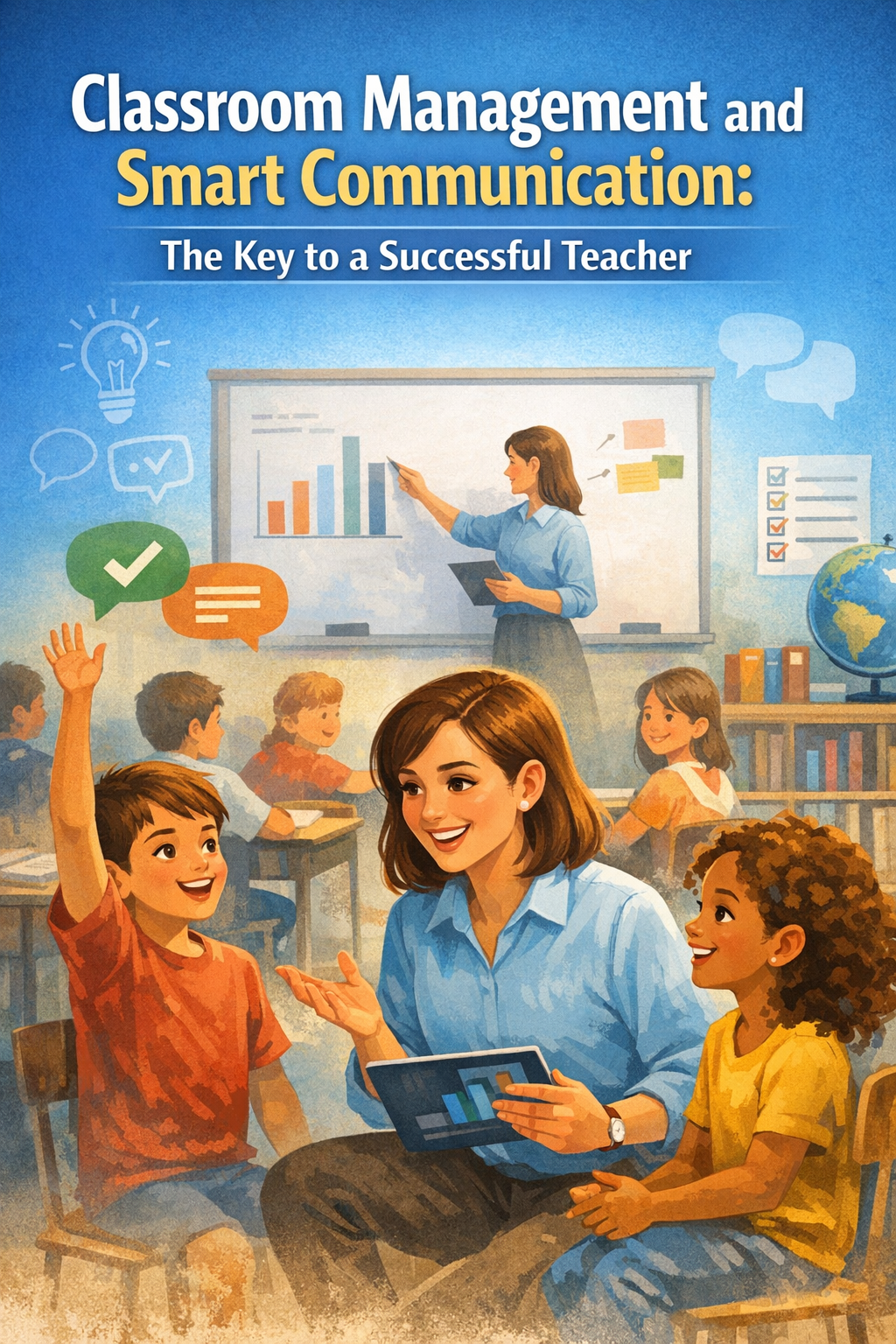
Classroom Management and Smart Communication: The Key to a S
Classroom management and effective communicat
2026-Feb-03
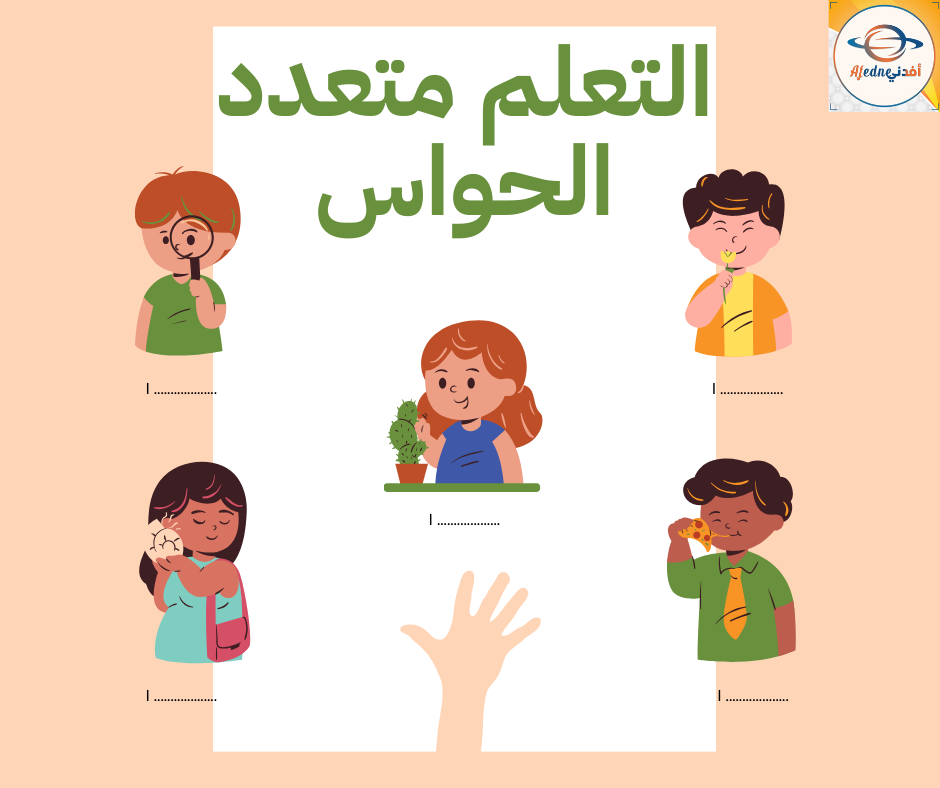
Multisensory learning
Multisensory learning is an educational a
2025-Dec-13

Smart Search: How to Find Reliable Resources for Your Lesson
Smart Search: How to Find Reliable Resource
2025-Nov-25
_1d119f43981f9c2d37fd4023dab43506.png)
How can you use artificial intelligence in lesson planning?
How to Use Artificial Intelligence in Lesso
2025-Nov-23